


Stream overlays Premium
A stream overlay is a public, read-only link that shows just a counter’s value live – with a transparent background, ideal as an OBS browser source for Twitch, YouTube or the venue screen.
Stream overlays are a Premium feature.
See Premium →Create an overlay link
- Open the counter Open the counter you want to show in your stream.
- Create overlay link Generate a link in the counter’s overlay area.
- Copy Copy the URL to your clipboard.
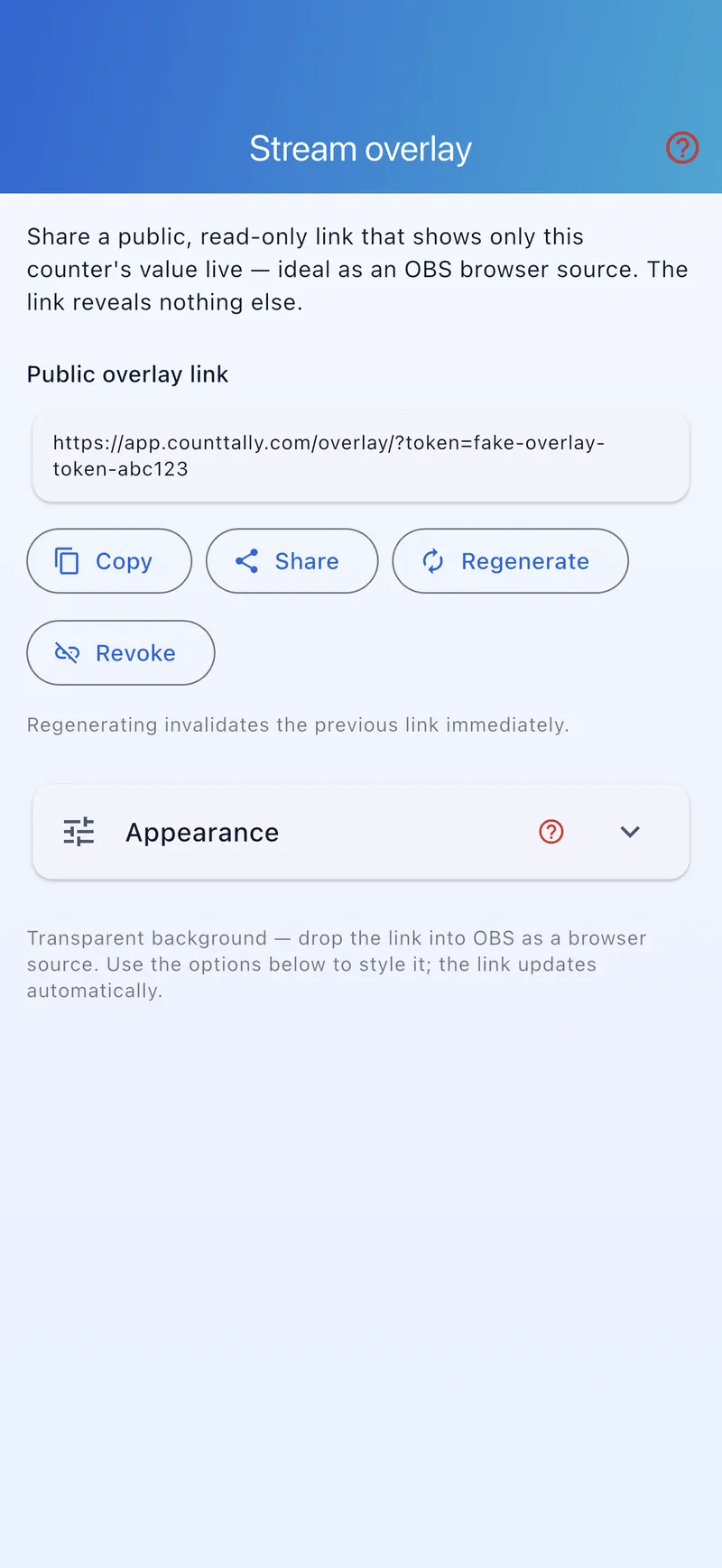
The link shows only the current value (and, if you want, the name and progress) – counting up via the overlay is not possible.
Add it in OBS Studio
- Add a source In OBS, under “Sources” click “+” and choose Browser.
- Paste the URL Paste the copied overlay link into the URL field.
- Set the size Set width and height to fit your scene; the background is transparent.
- Position it Move the source to the desired spot in your layout.
Customise the overlay
The easiest way is the in-app style editor – with a live preview. If you build the URL by hand or automate it, you can append parameters such as:
&name=1– also shows the counter name.&goal=1– shows progress towards the goal;&goalStyle=sets the style (number, percent or bar).&size=– font size of the display.&color=– text colour (hex without #);&goalColor=recolours the display once the goal is reached.&bg=/&bgOpacity=– background colour and opacity (default: transparent).&font=,&align=/&valign=,&shadow=,&suffix=,&pulse=1– font, alignment, shadow, suffix and a subtle pulse animation.
All options are available right in the style editor – the parameters are only needed for fine-tuning or automation.
Manage the link
- Rotate: invalidates the old link and creates a new one – in case a URL was shared by accident.
- Revoke: disables overlay access entirely.
The overlay link is publicly accessible (read-only). Only share it where the count should be visible – and rotate it when it should no longer be used.